How to Create and Share AI Stickers on WhatsApp: A Step-by-Step Guide
In the rapidly evolving world of artificial intelligence, messaging apps are catching up fast, bringing generative AI straight to our fingertips. If you've been looking for a way to add a more personal, creative touch to your WhatsApp conversations, AI stickers are the perfect feature for you.
Instead of scrolling endlessly to find the exact sticker to match your mood, you can now generate custom stickers simply by typing a description. In this article, we’ll walk you through exactly how to create and share AI stickers on WhatsApp for both Android and iOS devices.
What Are WhatsApp AI Stickers?
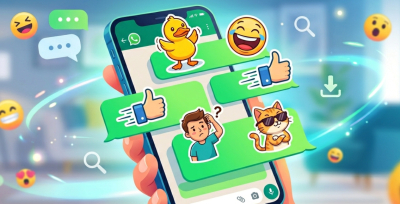
WhatsApp’s AI stickers feature uses secure, Meta-provided generative AI technology to create custom stickers based on text prompts. You just type what you want to see—like “a cat riding a skateboard on the moon” or “a laughing pizza slice”—and the AI will generate multiple sticker options for you to choose from and send in your chats.
How to Create and Share AI Stickers on Android
Creating your first AI sticker on an Android device is a seamless process. Here is how you can do it:
- 1 Open a Chat: Launch WhatsApp and open any individual or group chat.
- 2 Access the Sticker Menu: Tap the Smiley (emoji) icon next to the text input field, then tap the Sticker icon at the bottom of the screen.
- 3 Start Generating: Look for the Create button (accompanied by an AI sparkle icon). Tap it.
- 4 Enter Your Prompt: If prompted, tap Continue to agree to the Meta AI terms. Then, type a description of the sticker you want to create into the text box.
- 5 Choose Your Favorite: The AI will process your description and generate up to four unique stickers.
- 6 Share the Sticker: Simply tap on the sticker you like best, and it will instantly be sent into your chat.
Note: Once sent, the sticker will be saved in your recent stickers, allowing you to easily reuse it in other chats.
How to Create and Share AI Stickers on iOS (iPhone)
The process for iPhone users is quite similar, with just a few minor differences in the user interface.
- 1 Open a Chat: Launch WhatsApp on your iPhone and open a chat thread.
- 2 Access the Sticker Menu: Tap the Sticker icon located inside the text input box (on the right side).
- 3 Select 'Create': Tap the Create button. (If you don't see it, you may need to tap the AI or Sparkle icon depending on your current app version).
- 4 Enter Your Prompt: Agree to the terms if it’s your first time using the feature. Then, type a description of the sticker you’re imagining.
- 5 Pick the Best Match: Give the AI a few seconds to generate your sticker options based on your prompt.
- 6 Send It: Tap the sticker you want to share. It will immediately send to the chat and save to your recent stickers for future use.
Best Practices for AI Sticker Prompts
To get the most accurate and entertaining results out of the AI sticker generator, keep these tips in mind:
- Be Descriptive: Use adjectives. Instead of "dog," try "happy golden retriever wearing sunglasses."
- Mention an Art Style: You can ask the AI to generate stickers in specific styles, like "cartoon," "watercolor," "3D," or "pixel art."
- Keep It Appropriate: Meta's AI has safety filters in place, so avoid generating inappropriate, violent, or offensive content, as the AI will block those prompts.
Conclusion
AI stickers on WhatsApp are a fun, innovative way to express yourself when regular emojis and standard sticker packs just don't cut it. Whether you are using an Android or an iPhone, generating custom AI stickers takes only seconds.
Give it a try during your next group chat and let your imagination run wild!
Share:
![1000+ Best WhatsApp Stickers List 2026 [Funny, Mood, Reactions]](/storage/blog/media/thumbnail/2026/06/6a37c81091670.jpg)